How to Write a Thesis Most Efficiently
The conditions under which one does any work can make one more – or less! – efficient and productive. This is particularly true for work that requires a great deal of attention and concentration. Distraction or discomfort are not welcome in such efforts! Thus, we provide some basic advice on how to set up your workspace and the resources you need directly at hand to create the best possible conditions for doing your thesis most efficiently.
Back to Thesis writing process
One of seven pages on planning your dissertation. Browse all 69.
Related links
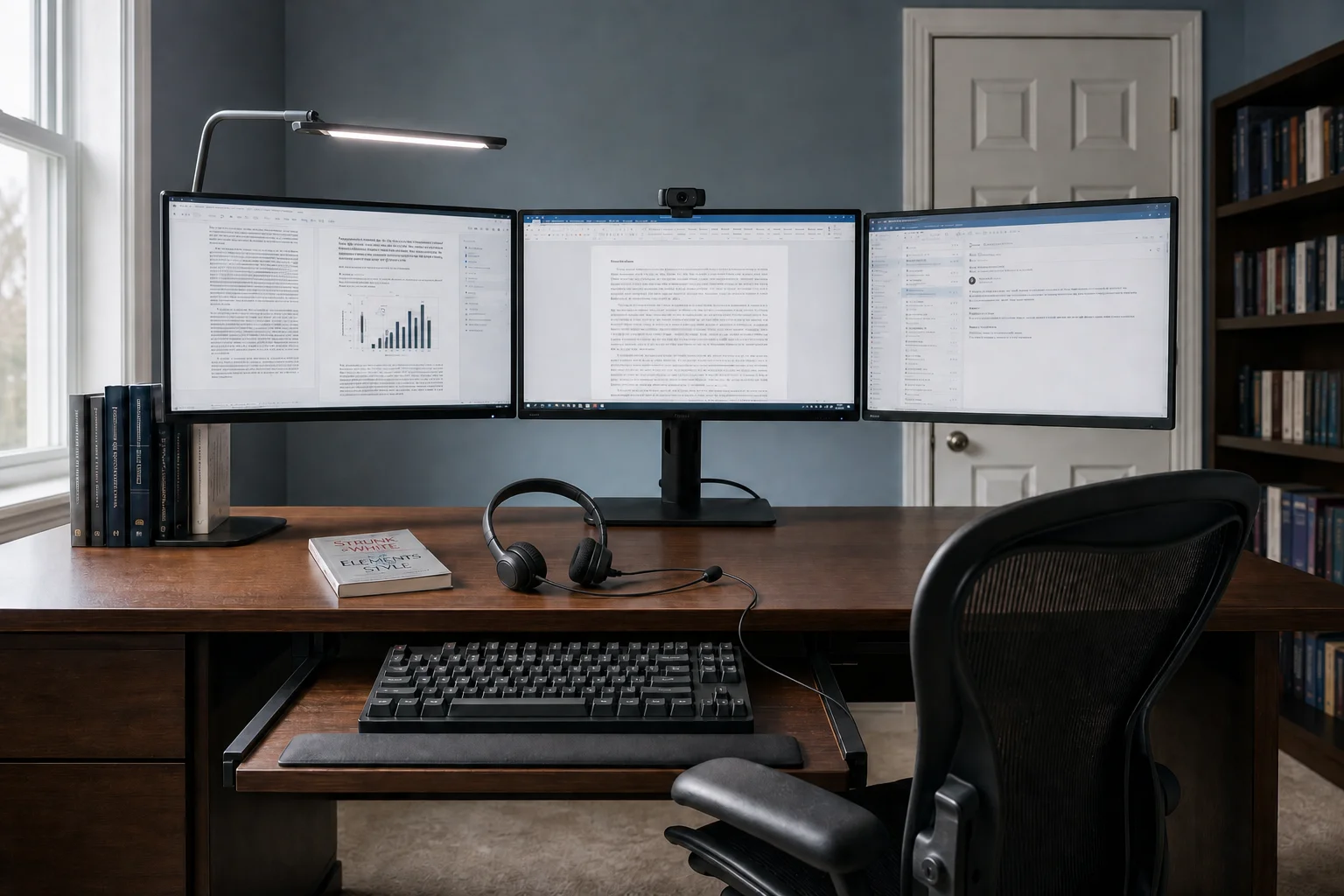
The Elements of an efficient thesis writing environment
- Appropriate workspace
- Writing & research Aids
- Online communication resources
Setting up your workspace and writing resources
You may spend as much on your doctorate as your house and in any case a very large amount of money and an inordinate amount of time. You would not start a US$200K/£160K business with no investment at all in efficiency enhancing equipment. Your thesis is the same! So, it is time to review what you need to implement the proposal/thesis process as efficiently as possible …
This is a big one and all too often overlooked. Do not set out on a task that is worth a US$100-200K on whatever table and with whatever chair you happen to have and in whatever space is convenient. Find a proper space to work in and, if at all possible (unless you live alone) one with a door. Ensure that you can get both privacy and quiet in the location you choose. Then set it up as we outline below:
- Space. As quiet as possible and with a door to assist with privacy. It needs space for a proper desk and chair and proper lighting…
- Desk. Yes, a desk that has a keyboard tray at the proper height for typing and allows you to get your monitor set up at eye-height. If you are not used to having your keyboard at that height? We strongly suggest that you adapt to it. In days, it will seem you have always used it that way.
- Chair. Here we are thinking of a steno chair – a chair optimized to maintain your posture in the optimum position for typing over long periods of time. We have used both types, with and without arms, and both work well but the ones with arms allow you to rest your elbows while still typing at the correct keyboard height. Here are links to some solid models at Amazon, IKEA is another good place to look, if budget is an issue – or any decent office supply store, of course!
- Lighting. Use 'daylight' lighting with a light temperature value of 5500K (or a bit above). This is the type of lighting that is often also found in 'reading lamps' and makes a big difference. Avoiding eye-strain and seeing clearly are important. IF you have an older 'reading lamp' with a fluorescent tube at that temperature? It is still perfectly good.
- Sound. Ensure that your laptop/computer has good enough sound that voices are reproduced clearly and adequately loudly. This is critical for video meetings and phone calls. If your computer currently has no sound output or your laptop has bad sound, use a headset with a boom mike. It is a better option whether you have other sources of sound or not as using one leaves your hands free. Frankly? We use Logitech H190 or H390 headsets and have for many years. They are very inexpensive, and give very good results for calls. Disclosure: We have zero links to Logitech and receive no compensation for that recommendation.
- Music (hint: don't!). Yes, yes, one of our founding partners always played music … but only when working on references. In other words, repetitive work and familiar work. Recent research has now confirmed that playing music when doing other tasks does impair concentration and focus. So…you bought great speakers as a dual use item for video calls and playing music? Enjoy them on your calls. Don't use them while working on your thesis. Only listen to music when not working.
- Sound environment. Keep the area you work in as quiet as possible. Buy noise-canceling headphones if necessary (Bonus: you can use them traveling too so make sure they have a 3.5mm DIN audio port for a standard audio cable. They make a huge difference for inflight movies!). Note, alas, noise cancellation does not work well on voices, crying babies, and music, only regularly recurring sounds.
- Monitors. These are remarkably inexpensive compared to even five or ten years ago. Get at least two. Two of the same model and size are a good start. We recommend three. Our internal standard is three 32-inch monitors at WQHD, 2560x1440. One of our founders uses two 43-inch screens at 4K instead — see the next item for why. In our recommended layout, One for your email and other activities, one for your research, the middle one for your word processing. Your doctorate will cost US$100 to 200K, and even in the UK, or elsewhere, in the anglosphere doctorates are expensive. Each term costs US$5-10K and the investment adds up fast. Investing in the proper equipment to make the process faster and more efficient is a 'slam-dunk.'
- Screen Size: Yes, indeed, bigger is better and much research has confirmed this over the last twenty years. Avoid small screens. Research has shown strong correlations between screen size and productivity. We recommend 27” as the very minimum and at 1920x1080. Internally, our own editors use WQHD (2560x1440 resolution) 32” screens – in tricorn mode (3 monitors). We consider 32” screens the 'sweet spot' for writing and editing – when buying 32” monitors do not be fooled into buying ones at resolutions less than 2560x1440 – the difference, at most, is a few dollars or pounds and it makes a big difference in what you can see and work with, on screen, at any one time. Using a 43”, 4K resolution screen is really cool but is best when manipulating a lot of spreadsheets, working with graphics, developing computer code, doing engineering…or gaming of course! One of our founders has used twin 43” screens for a number of years and found them to be effective but he still misses the advantages of a tricorn layout and may add a 32" to his layout — after restructuring his workspace. Of course, he also writes computer code and works with a lot of spreadsheets.
Bonus: you can use your screens for a lot more than your dissertation and for years afterwards…but the thesis is your rationale. Tip: there are often really good deals on 27” and 32” screens at Costco, especially Costco online. Other good sources include, Amazon, NewEgg, and sometimes on sale, BestBuy, or in the UK Curries. Remember, buy on sale – it makes a big difference. Great sale times? Amazon Prime Days, Black Friday, January after people's gift cards have run out.
- Keyboard. Keyboards have gotten steadily shoddier over the years. Now they are a $2 item that has to act as the interface with your far more expensive computer or laptop. Get a good keyboard that supports fast, accurate typing. The best are mechanical keyboards – the ones gamers also swear by. However, anyone that types a lot uses them also. Prices have fallen and good ones now start between $40 and $50. The best ones, for typing for years, had keyboard switches like Cherry Blue or Cherry Brown. Now gamers and keyboard enthusiasts have moved on to very sophisticated new technologies. Technologies that while costly affect typing little. Thus, keyboards with real Cherry keys have come down in price. Be warned Cherry keys (and their many imitators) are color-coded by application — you are looking for blue, red, or brown. Some are noisy, some are silent. We use them.
- Webcam. Don't have one? Get one. Have a poor quality one in your laptop? Buy a better one. They just plug directly into a USB port. The good ones are 1920x1080 resolution and should provide sharp, bright images. Many no-name brands claim impressive specs and performance and do not deliver. If you are not a real geek, pick a top reviewed one. Obviously try to get it on sale! Great times for sales are: Amazon Prime Days, Black Friday and the period after Christmas – especially in later January when everyone has used up their gift certificates. As for us? We use Logitech 1080p webcams.
Here are four reliable review sites for webcams:https://www.tomshardware.com/best-picks/best-webcams https://www.pcmag.com/picks/the-best-webcams https://www.cnet.com/tech/computing/best-webcams https://www.pcmag.com/categories/webcams
- Mouse. Time for more than the $2 special. Get a decent mouse with good accuracy. We tend to like Logitech wireless mice. Good ones start in the $15 range. Get one that fits your hand size.
- What lives in the bag. What lives permanently in your laptop bag — power, adapters, and the things that save a conference talk. Printable checklist.
- Computer/Laptop: Avoid the really low-end stuff with bog-slow processors. As a rule of thumb? At least a recent generation (does not have to be the latest!) Intel Core 5 (formerly i5) chip or the AMD equivalent for your computer/laptop's CPU. For editing and writing, Core 7 CPUs provide no advantage at all over the equally fast Core 5, as editing and writing do not need highly advanced multi-threaded processes.
- External backup drive. Always great and still strongly recommended by us. Really tight for cash? You can back up to the cloud for free or minimal cost. MS OneDrive is free, upgraded storage for it comes with Office subscriptions. Google provides GoogleDrive. Dropbox is another big name. Whatever you use? Use it! Backup regularly. If you can afford it also use an external backup drive of your own. Not sure of your options? Not sure how to set it up? See our backup page and avoid potential disaster.
Wordprocessors' Hidden Writing Super Power
We use Word and LibreOffice as examples, but all word processors have built-in outlining tools.
A super power for doctoral candidates, and sadly all too often skipped over.
The principle is the same everywhere. You write your outline using heading styles — Heading 1, Heading 2, Heading 3 — rather than by typing numbers and indenting manually. The software then knows the structure, which is what lets you move whole sections in one action and see the shape of the document at a glance.
Microsoft Word
- Outline view: View → Outline. Shows only your headings, collapsible by level
- Navigation pane: View → Navigation Pane. A live map down the left side. Drag a heading and the whole section moves with it
- Promote and demote: `Tab` and `Shift+Tab` in Outline view
LibreOffice Writer
- Navigator: `F5`, or View → Navigator
- Promote and demote: `Tab` and `Shift+Tab` at the start of a heading line
- Move a section: in Navigator, select a heading and use the move buttons. The content moves with it
Why heading styles rather than manual numbering
Type "1.2.3 Sample selection" as ordinary text and it is just words. Apply Heading 3 and it becomes a moveable object — one you can collapse, drag, renumber automatically, and turn into a table of contents in one click.
Resources to have at hand
Free standard communications technologies
Signal WhatsApp Zoom Microsoft Teams Google Meet
Grammar and English aids. The go to classic is Strunk & White's, brief and elegant. Buy it and keep it on your desk…forever. Elements of Style
Style guides APA 7 style guide MLA style guide Turabian Chicago style Oscola
How to use your browser
Today your browser is your critical interface with everything from your institution's library, to online databases, AI models, and most important of all, Google Scholar. Ensure you are using a major browser (Firefox, Chrome, Edge, Safari inter alia…) and keep it updated. We recommend Firefox and Brave. These are open source, non-profit, and far more focused on privacy (especially Brave) than the 'Mega-Corp' browsers. We also use Vivaldi for research. These are also less likely to be directly targeted by hackers as they are not market leaders (Chrome is!).
How to use your browser for research
Put critical resources such as bookmarks on your browser's toolbar where you can see them all the time. Also, for doing research find all the resources you need, open them all up in tabs and then save the tabs as a group - or in as many groups as you need, add the date and overall topic to the name of the group bookmark. Losing a critical point or quote and needing to spend hours going through research to find it again is a major pain! We know.
Below are links to highly useful resources that you need for certain to have at your fingertips:[These links need to be on your toolbar for certain!]
- Purdue OWL– style guides (APA, MLA and others)
- DOI lookup page
- Google Scholar
- A grammar checker — useful for a mechanical pass, but see our note on setting up your AI research environment below before relying on any automated writing aid
- Reference checker
- OED Dictionary:• Global/Anglosphere:
- American
- Our page on scholarly writing
- Wikipedia
Freebie! download the bookmark groups on the Resources page Touch typing and keyboarding. Yes! If you cannot touch-type with all ten fingers, it is time to learn.
Unlike many years ago it is no longer a very painful process and you can have basic mastery in weeks. The key? Use an online typing tutor. The magic? Because you are looking at a screen the dreaded problem of learners looking at their fingers while typing is largely overcome. One of our founders, using a very early generation typing tutor, learned to touch-type in two weeks in about 15-20 minutes a day of effort. Of course, once you can touch-type, it will be slow at first! However slowly, do not 'hunt and peck' or two-finger type once you learn. Speed will come quickly if you keyboard regularly. Now is the time to learn and the thesis is the reason why. There are a number of cognitive reasons we recommend it beyond issues of efficiency but they are beyond the scope of this page. Tech Radar Typing tutor software Lifewire Free typing lessons
We Mean It! Do not skimp on the basic equipment you will need!
Much experience has taught us that it will pay huge dividends in the thesis writing process. As a bonus? You will permanently be better off in all else you do that requires this equipment and, as importantly – the new skills you are learning. There is a reason companies spend money on work spaces and equipment for staff – productivity! You need that same productivity as well and have an even greater need to avoid distraction and to be able to concentrate.
My work space is 100% ready – What next?
Once you are all set up it is time to jump to our fast thesis writing page and start on the proposal/thesis process itself.
Follow the advice on this site and you can have a thesis done, complete and approved in a year from proposal drafting or proposal approval. There is no value in stretching out the process and much value in getting it done with dispatch!
One of seven pages on planning your dissertation. Browse all 69.

