Backing Up My Thesis and Research
...I lost three weeks of work and I don't know if I can get it back...
The candidates who say this to us are not careless people. They are exhausted people who assumed their files were safe because they were "in the cloud" — and discovered, at the worst possible moment, that syncing and backing up are not the same thing. This page makes sure that is never you.
One of seven pages on planning your dissertation. Browse all 69.
Related links
Why a full page on something you can find in a dozen places?
Because almost nobody reads it until after. By then the page is useless — you are on our panic page instead, and we are talking about recovery rather than prevention.
So do it now. Not this week, not after this chapter — now, while you are on this page.
Everything you need is below, in one place, written for somebody with a dissertation on their machine and no time to go researching storage. Twenty minutes, and you will never think about it again.
We wrote a whole page on this because it is the best-spent twenty minutes of your entire doctorate, and because the people who most need it are always the ones who meant to get around to it.
On this page
- ...but Word saves automatically, doesn't it?
- ...how do I make sure Word documents in particular get backed up?
- ...should I just use LibreOffice? It's free.
- ...isn't my work already safe in OneDrive / iCloud / Google Drive?
- ...how do I back this up properly? (the principle)
- ...on Windows
- ...on macOS
- ...on Linux
- ...what if it is already too late?
A working backup routine takes twenty minutes to set up and can save you months. Here is how to do it properly on Windows, Mac, or Linux — and, more importantly, why the obvious approach is not enough.
...but Word saves automatically, doesn't it?
Not the way you think, and this misunderstanding has cost candidates real chapters. Word has several save features and none of them is a backup:
One habit matters more than any setting on this page. Ctrl-S saves your file — Cmd-S on a Mac — and building it into a reflex is the cheapest protection against losing work that exists. Every professional writer has it. The tip beside this explains how to make it automatic.
- AutoRecover only rescues a document when Word itself crashes — and only then. A normal restart does not count. An operating-system update reboot does not count. Your laptop dying on low battery does not count. In all of those extremely common situations, AutoRecover does nothing at all. It is a crash net, not a save, and it is frequently emptied the moment you close the file normally.
- AutoSave — the real, continuous, save-every-keystroke feature — exists only for files stored on OneDrive or SharePoint. If you are comfortable storing private data in the cloud, enable OneDrive by all means — on recent versions of Windows it is often on by default, or nags you until it is. If your dissertation lives in a normal folder on your own drive, you do not have AutoSave, no matter how many times you have seen the toggle. Microsoft limits it to cloud storage deliberately.
- "Always create a backup copy" (in File → Options → Advanced) keeps exactly one previous version, overwritten every time you save. It is better than nothing, but it is not version history — two bad saves in a row and the good copy is gone.
The practical upshot: do not trust Word to protect your dissertation. Press Ctrl+S constantly out of habit, set AutoRecover to a short interval (2 minutes) as a crash net, and — most importantly — put a real versioned backup underneath it all, using the system tools below. Word's own features are the thin top layer, not the foundation.
...how do I make sure Word documents in particular get backed up?
Word's own features are not enough (see above), so the job falls to the system-level tools on this page — but there are two Word-specific steps worth taking.
First, turn on "Always create a backup copy" in File → Options → Advanced → Save. It keeps only the single previous version, but that single version has saved people from a bad save, and it costs nothing.
Second — and this is the reliable one — make sure your dissertation folder is inside whatever versioned backup you set up below (File History, Time Machine, Déjà Dup). That is what gives your `.docx` files real version history: not Word's doing, but the operating system's, sitting underneath Word and catching every saved version regardless of what Word itself does.
If you want belt-and-braces, third-party tools such as Duplicati or Macrium Reflect (Windows) and restic or Duplicacy (cross-platform) can back up your document folders on a schedule, encrypted, with deep version history, to a local drive or a cloud target. These are more than most candidates need, but if you have been burned before, they are worth the small amount of time it takes to set one up. The principle is the same as everything else on this page: something outside Word must be keeping dated, restorable versions of your file.
...should I just use LibreOffice? It's free.
LibreOffice is genuinely excellent, and for a document you control from start to finish it is a fine choice. But there is a specific, painful trap that we have watched catch candidates at the worst possible moment, and you need to know about it before you commit.
University dissertation templates are frequently complex, fragile, Word-specific files — and third-party word processors, including LibreOffice, usually break them. These templates lean on exactly the features where LibreOffice and Word diverge: custom named styles that do not map cleanly, nested tables, automatic fields, section breaks with linked headers and footers, embedded fonts, and precise page-layout rules that your institution's formatting reviewer will check line by line.
Open such a template in LibreOffice, work in it for weeks, save it back to `.docx`, and sometimes the damage is obvious. More often it is invisible to you and glaring to your reviewer: heading styles subtly renumbered, the table of contents miswired, margins or line spacing shifted, a landscape section gone portrait. You did nothing wrong. The two programs simply render these fragile constructs differently, and the round-trip through `.docx` does not survive intact.
Our practical advice:
- If your institution provides a mandatory Word template, use Word for the final document. This is the one situation where we do not recommend LibreOffice, and the stakes — a formatting rejection at School Review, days before your deadline — are too high to gamble on compatibility.
- If you strongly prefer LibreOffice, write your content in it, but move into the official Word template late, in Word, and do your final formatting there — then never round-trip it back to LibreOffice. Keep the two jobs separate: LibreOffice for drafting if you like it, Word for the template-bound final.
- Whichever you use, if you are handed a template, test it early. Put a page of dummy content through the full formatting requirements weeks before submission, not the night before, so any breakage surfaces while there is still time to deal with it.
There is one more version of this trap that catches people by surprise: collaboration. The moment your template-bound document passes between two people using different software — you in Word and an editor in LibreOffice, or the reverse, or two people on different LibreOffice versions — every round-trip is another chance for the fragile formatting to shift. This matters directly when you are choosing who to work with. Some low-cost and offshore editing operations run entirely on LibreOffice, and a complex university template handed to such an editor can come back subtly broken, with neither of you aware until a reviewer flags it. If you are sharing a template-bound document with anyone, agree on a single program and a single version before a word is exchanged, and keep one person as the authoritative holder of the master file. (For what it is worth, this is one of many reasons we work in whatever environment your institution requires rather than whatever is cheapest for us. By default, for dissertations and professional writing, we use MS Word.)
A note for Linux users specifically.
...stop 'wining' and start writing...
If you run Linux and have leaned on — or are thinking of leaning on — LibreOffice only because you assumed Word was not an option, that assumption may be wrong. Given the template risks above, we do, sadly, recommend MS Word — especially if your institution provides templates whose use is compulsory. So what are your alternatives?
Traditionally the best two were to dual-boot with Windows (an approach we ourselves used for many years) or to run a Windows compatibility layer such as Wine — the classic option, but at a real cost in efficiency and with less than full functionality. In more recent years, some ran a whole Windows virtual machine just to reach MS Office, which works but is heavy.
Now there is a far more elegant answer, and it is the one we use: run a headless container with a legal copy of MS Word (or MS Office) inside it. It allows file sharing from within Linux, it looks and behaves like a native Linux window, and on a reasonably specced laptop or workstation performance is excellent — close to native. One firm caveat: it must be a distinct, separately licensed copy, not one shared or re-used from another machine. Doing it right means doing it licensed.
If the container route appeals but the setup is beyond you, ask us — walking candidates through exactly this kind of hard-won technical detail is part of what we do.
This is exactly the kind of avoidable, structural problem that stalls a submission at the last moment — and exactly the kind of thing an advanced editor catches, because it lives in the whole document's construction, not in any single sentence.
...isn't my work already safe in OneDrive / iCloud / Google Drive?
No — and this is the single most dangerous misunderstanding in this whole subject, so read this section even if you skip the rest.
Cloud sync services keep a copy of your current file in the cloud. Note that word: current. That protects you against exactly one disaster: your computer physically dying. It does not protect you against the disasters that actually befall dissertations:
- You delete the wrong file, and the deletion syncs to the cloud a second later.
- You mangle chapter 4 in a bad editing session, save it, and the corrupted version overwrites the good one everywhere.
- A misbehaving program, or your own tired hands at 2am, wreck a document, and the wreckage propagates to every synced copy before you notice.
Sync is a mirror. Whatever happens to your file happens to the mirror, including the bad things. What you actually need is version history — the ability to go back to what the file looked like yesterday, or last Tuesday, or before you made the change you now regret.
The good news: every major system offers this, and the cloud services do keep limited version history if you know where to look. The rest of this page shows you how to turn on real, versioned backup on your system.
...how do I back this up properly? (the principle)
Aim for three copies. Done properly, it is the difference between an inconvenience and a catastrophe. This is the rule professionals use, adapted for a thesis:
- Your working copy — the file you edit every day, on your computer.
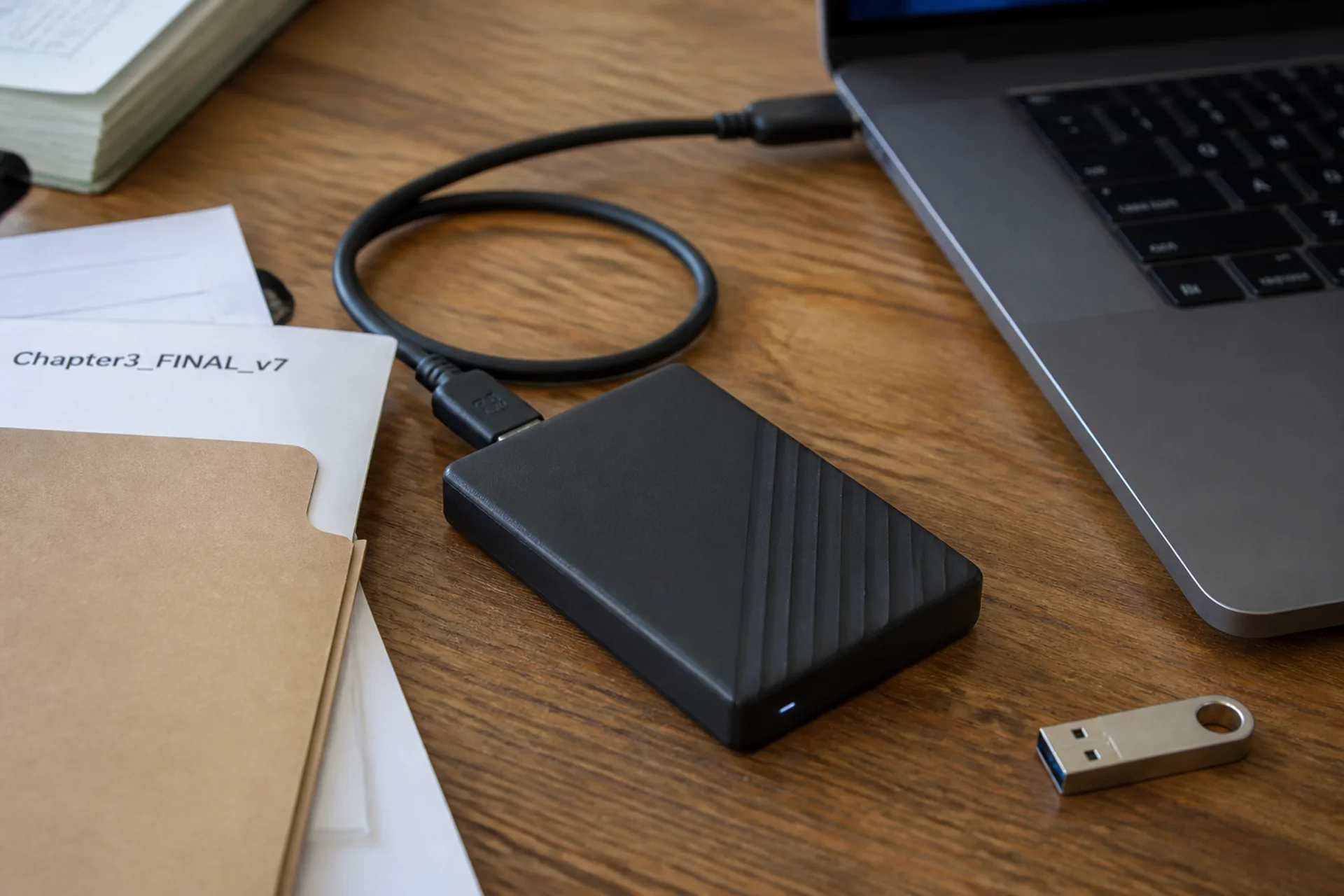
- An automatic local backup with version history — a separate drive that keeps not just the latest version but older ones too.
- An off-site copy — cloud sync, which protects against fire, theft, and a dead laptop.
Most candidates have only copy 3, and mistake it for all three. The setup below gives you all three, and it is mostly automatic once configured.
On the drive itself: we use hard drives for backup, not SSDs. Slower and larger, but there is a fair chance a hard drive will warn you before it fails, and an SSD frequently will not — and a meaningful share of SSD failures happen when the drive is nearly new. For the copy that exists in case the first one dies, warning matters more than speed.
And on the machine itself: put your operating system on an SSD and your data somewhere else. A fast M.2 drive for Windows, Linux or macOS and program files; a hard drive for your documents, or a second SSD backed up to a hard drive in the same machine. A second internal drive is not a backup — it protects against one drive failing and nothing else.
One more habit, independent of any software: save dated versions of your whole thesis at milestones. `Thesis_2026-07-24.docx`, `Thesis_2026-07-31.docx`, and so on. Keep them in their own folder. Disk space is trivial; a clean copy of last week's draft when this week's has gone wrong is priceless. This also doubles as your process documentation if your work is ever questioned — see Navigating AI Detection Paranoia.
...on Windows
Version history on a local drive — File History:
- Connect an external drive (a cheap USB drive is fine; keep it plugged in or reconnect it regularly).
- Open Control Panel → System and Security → File History (menu current at time of writing).
- Select your external drive and turn File History on.
- In Advanced settings, set how often it saves (hourly is a sensible default) and how long to keep versions (until space is needed, or a fixed period).
File History now keeps versioned copies automatically. To restore an older version: right-click the file or folder → Restore previous versions.
Off-site copy — OneDrive:
OneDrive is free with a Microsoft account, which is also free, and gives you 5GB. Five gigabytes is more than enough for any dissertation project. A Microsoft 365 subscription raises that to 1TB. In Settings → Accounts → Windows Backup, enable folder backup for Desktop and Documents. Note OneDrive's own version history: right-click a file on the OneDrive website → Version history lets you roll back individual files, and its Recycle Bin holds deleted items for 30 days on a personal account — 93 days on most institutional ones.
Together, File History plus OneDrive gives you all three copies.
...on macOS
Version history on a local drive — Time Machine:
- Connect an external drive, ideally one dedicated to backups.
- Apple menu → System Settings → General → Time Machine (menu current at time of writing).
- Add your drive as the backup disk.
Time Machine then keeps hourly, daily, and weekly versions automatically. To restore: enter Time Machine and step back through time to the version you want.
Off-site copy — iCloud:
iCloud Drive with Desktop and Documents sync keeps your files across devices and in the cloud. Be clear about its limits, though: it is a sync service, not a backup — deletions propagate, and it only covers iCloud-designated folders. Apple does not permit Time Machine backups to be stored in iCloud. So on a Mac, Time Machine is your real versioned backup and iCloud is your off-site sync — you want both, doing different jobs.
...on Linux
The friendly option — Déjà Dup:
Déjà Dup (Backups) is the simplest tool and is in most distributions' software centers, or install via your package manager. It does encrypted, incremental, versioned backups to an external drive, a network share, or a cloud target, with simple daily/weekly scheduling. Point it at your Documents folder and a destination, turn on automatic backups, and it handles the rest. Restoring is a matter of picking a date.
If you want more control — rsync:
For those comfortable in a terminal, a scheduled `rsync` to an external drive gives precise control, and combined with `--backup` and dated directories it produces real version history. A cron job or systemd timer automates it.
Snapshots — Timeshift:
Timeshift is excellent for snapshotting your whole system, and superb for recovering from a bad update. But its default purpose is system files, not your documents. Configure it to include your home directory, or run it alongside Déjà Dup, which is document-focused by default. Left on its defaults it will not protect your thesis.
Off-site copy:
Sync your backup destination or your working folder to a cloud service. Most cloud providers have Linux clients or work via rclone, which now supports a wide range of providers including iCloud, OneDrive, and Google Drive.
...on your phone and tablet
Phone and tablet copies are different from desktop backups, and the difference matters. The desktop sections above are about making backups. On a phone you are almost never backing anything up — you are syncing, and the risk is not that you lose the file. It is that your phone quietly overwrites the good copy with a worse one.
The failure that actually happens:
You open the chapter on your phone in a waiting room, fix a sentence, and close it. Two days later you cannot find the paragraph you rewrote on your laptop on Tuesday. Nothing was deleted and nothing crashed. Your phone had an older version cached, opened it, saved it, and the sync obediently pushed that version everywhere. This is the single most common way we see recent work disappear, and it does not look like a disaster at the time — it looks like you misremembered.
What to do about it:
Do not treat a phone as a place to work. Read on it freely. Comment on it if the app supports comments rather than edits. Make substantive changes on a machine with a real keyboard and a real backup behind it.
If you must edit on a phone, open the file only when you have a signal, so it fetches the current version rather than a cached one, and let it finish syncing before you close the app. Half a sync is worse than none.
Device backup is not document backup:
iCloud Backup and Google One back up your device, not your dissertation. They will restore your phone if you drop it in a river. They will not give you last Tuesday's version of chapter three, which is the thing you will actually need. Version history lives in your document service — OneDrive, Google Drive, Dropbox — and it is worth finding out today where yours is and how far back it goes.
Photographs of whiteboards, notes and interview recordings:
These are research data and they are usually the least backed-up thing a candidate owns. Interview audio in particular often exists in exactly one place, on the phone that recorded it. Get it off the phone the same day, into the same backed-up folder as the rest of your material — and if it is participant data, into wherever your ethics approval says it must live.
...power, and two threats nobody mentions
Power first, because it is the one that will actually happen to you.
A desktop workstation has no battery. The power goes, the machine stops mid-sentence, and whatever was in memory is gone — and if it went during a save, the file itself may be damaged rather than merely out of date. A UPS is not optional equipment for a workstation. It is a small box with a set of outlets backed by a battery. It protects you from current fluctuations and keeps your machine running through a failure. That may be a few minutes or a good deal longer, depending on what you spend — but it will be long enough to save, close properly and shut down, and with a large enough unit, long enough to carry on working. They are relatively inexpensive and they last years.
Pro tip: look for a UPS whose battery is easy to replace. The battery is a wear component. It will need changing every few years, and a unit that makes that simple lasts as long as you need it to. One that does not is a disposable purchase.
If you live somewhere power is unreliable, go further. Frequent cuts and voltage fluctuations are hard on equipment as well as on documents, and a laptop battery keeps the screen on. It does nothing about the current reaching everything else you own. Put the router and the cable box on a UPS as well — otherwise a brief cut takes your connection down mid-sync, which is precisely when a half-finished sync does its damage.
And it is not only the documents at risk. Brownouts and surges do slow cumulative damage to power supplies, and a power supply that fails can take other components with it as it goes.
And this is where cloud backup earns its keep. Working from the cloud when you travel keeps your dissertation device-independent — it does not live on the machine that just died, and picking up on the other laptop is a matter of signing in. Convenience and security in the same move, and the only version of this that works when the failure is theft rather than a crash.
For what belongs in the bag permanently — power, adapters, and the full checklist — see What lives permanently in your laptop bag.
And there is a single-purchase answer if the problem is chronic. A whole-house UPS or inverter covers the desk, the router, the lights and everything else in one unit, and where cuts are a daily fact of life it is often what households end up buying anyway. If you are already considering one, it solves this problem as a side effect. We would not suggest buying one to protect a dissertation — but if the power where you live is genuinely unreliable, you are probably not weighing it for the dissertation alone.
Ransomware — small risk, low-cost insurance:
It is not a large threat to an individual candidate, but it is not zero. Ransomware encrypts your files and asks for money, and a synced folder will propagate encrypted files exactly as obediently as it propagates a mangled chapter. Your cloud copy is not a defense.
Ordinary sensible practice is enough. Keep your operating system updated. Do not open attachments you were not expecting, even from people you know. And keep one backup that is not permanently connected — an external drive you plug in weekly and unplug afterwards. A drive that is not attached cannot be encrypted, which is the whole of the defense and costs nothing but the habit.
Note what these two have in common with everything else on this page. Neither is exotic and neither requires expertise. The candidates who lose work are almost never the careless ones — they are the ones who assumed something was protecting them that was not.
...what if it is already too late?
If you have lost work, do not panic and do not immediately do anything drastic. Several routes may still recover it.
- Your cloud service's version history and recycle bin. Thirty days on a personal OneDrive or iCloud account, 93 days on most institutional ones — check which you have.
- Your word processor's own autosave and document-recovery features.
- File-recovery tools, if the file was deleted rather than overwritten. These often retrieve recently deleted data — but only if you act before the disk reuses that space.
If it is your dissertation and a deadline is bearing down, this is exactly the kind of situation our Panic page exists for. It carries a much fuller treatment of how to retrieve lost documents, including several places to look that nobody thinks of. We have helped candidates recover work they were certain was gone. Do not assume it is lost until someone who knows where to look has tried.
One of seven pages on planning your dissertation. Browse all 69.

